



Who Can Access Your Microsoft 365? A Hudson Valley Business Owner’s Security Checklist

By Jason Fisch, Founder & President of Fisch Solutions
When you review access to your company’s email and files, it is natural to start with the people who work for you. But there is another list worth looking at: the software connected to Microsoft 365.
Fisch Solutions, Inc. provides managed IT and cybersecurity support for Hudson Valley organizations from its headquarters in New Windsor, New York. This checklist explains what to look for in connected applications and how to decide whether a formal permissions review is needed.
You can have strong employee passwords and multifactor authentication while an application has separately granted access under its own identity (Microsoft’s explanation of application access). A backup service, CRM connection or other integration belongs in that review, even if nobody thinks of it as an account.
For a Hudson Valley business owner, the useful question is not whether connected software is good or bad. It is whether someone can explain why each connection exists, what it can reach and who is responsible for it.
Microsoft 365 access is not limited to employee accounts: third-party applications can receive delegated or application permissions, with access depending on the grants and access model (Microsoft’s permissions overview). Hudson Valley businesses should identify who owns each connection, review what it can reach and verify that unnecessary access is removed safely.
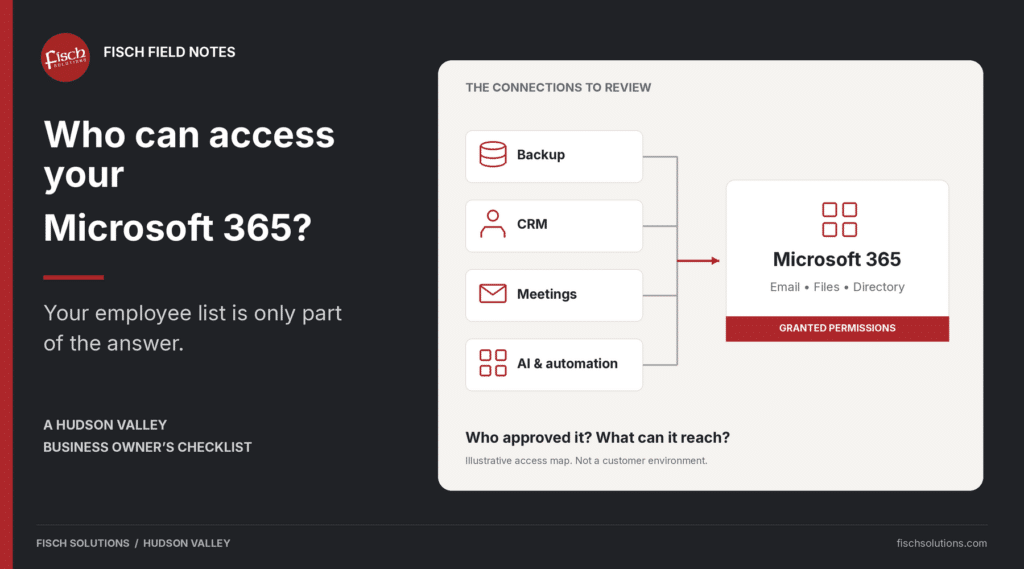
Diagram of backup, CRM, meeting and AI tools connecting to Microsoft 365 through granted permissions.
Review the applications connected to Microsoft 365, not just the people who sign in. This is an illustrative access map, not a view of a customer environment.
The question a user list cannot answer
Consider a backup service that needs to run overnight. Microsoft identifies backup and automation as legitimate uses for app-only access, where an application operates without a signed-in user (Microsoft’s authentication guidance). Reviewing employee accounts would not, by itself, explain that application’s permissions.
In its October 21, 2026 report on the ConnectWise supply-chain compromise, Microsoft described attackers using stolen application credentials to authenticate to customer environments without an interactive user sign-in (Microsoft Security research).
Microsoft also cautioned that an affected application or successful authentication did not necessarily establish that customer data had been accessed or stolen (Microsoft Security research). A sign-in record is evidence to investigate, not permission to jump to a conclusion.
For an owner, the useful question is straightforward: “Who reviews the software we have allowed into Microsoft 365?” It should have a named answer.
A regional example: the CRM connection nobody owns
Consider a hypothetical business with offices in New Windsor and Poughkeepsie. An outside CRM vendor sets up an integration, and the employee coordinating the project becomes its informal owner. Later, that employee leaves and the business stops using the CRM.
If that integration used app-only permissions, removing the employee’s account would not, by itself, remove access granted to the application’s separate identity (Microsoft’s app-only access model). In this example, one office assumes IT handled the disconnection while the other assumes the vendor did. Nobody checks the application itself.
This is an illustration, not a Fisch client incident. The lesson is about ownership: ending a software relationship should trigger a technical access review, not just a cancellation of the invoice.
Two kinds of application access worth understanding
You do not need to become a Microsoft administrator to ask the right questions. Start by having your IT team distinguish these two access models for each connection.
Delegated access: the application acts for a user
With delegated permissions, an application acts on behalf of a user, and its access is constrained by both the permissions granted to the app and the user’s own access (Microsoft’s delegated-permissions explanation). For example, delegated Files.Read.All lets an app read files that the user can already access, not automatically every file in the company (Microsoft’s file-access example).
That is a reason to review both sides of the connection. Ask whether the person needs their current access and whether the application needs everything it has been granted.
App-only access: the application uses its own identity
With application permissions, the software can operate without a signed-in user; for example, the application version of Files.Read.All can read files across the organization (Microsoft’s application-permissions explanation). The permission name and access model therefore need to be reviewed together.
App-only access is not automatically wrong. Ask why it is necessary, whether a narrower supported permission would do the job, and who controls the application’s credentials.
Comparison of delegated access, which acts for a user, and app-only access, which uses the application’s own identity without a signed-in user.
The same application name is not enough to assess access. Check the permission type and the actual grants (Microsoft Graph permissions).

How an IT provider should manage Microsoft 365 application access
An application-access review should connect technical findings to business decisions. The administrator can identify a permission, but the person who uses the software needs to explain why it is needed and what would break if it were removed.
I would expect a properly scoped review to cover three pieces of work:
- Establish the access: Identify connected applications, record the actual permissions and assign business and technical owners. Compare the access with the job the application is supposed to do.
- Check the evidence: Examine relevant authentication and audit records, account for missing history, and investigate suspicious activity through the agreed security process.
- Manage the decisions: Coordinate changes with the people affected, document what was kept or removed, test the result and set a periodic review schedule.
How Fisch Solutions approaches Microsoft 365 security
Fisch Solutions was founded in 2006 (Jason Fisch’s company history). As a Hudson Valley managed IT and cybersecurity provider, we look at Microsoft 365 as part of the wider IT environment, with Microsoft 365 migration and support work connected to the people and business processes using it.
We are locally owned and independently operated, with a physical New Windsor headquarters supporting dedicated cybersecurity and compliance personnel, technical support, hardware and installation work, and field technicians supported by company vehicles (our regional organization and technical resources). That coordination matters when a Microsoft 365 concern involves a business application, user account, workstation or wider network issue, rather than an isolated permission setting.
Our cybersecurity personnel work on security controls, monitoring and incident coordination alongside those technical resources (Fisch Solutions’ cybersecurity and compliance services). For a Fisch engagement, the proposal and agreement should identify which activities we handle, what remains with your team or software vendor, and whether a separate assessment or project is needed.
Application inventories, permission assessments, incident investigations, remediation and recurring monitoring need clear ownership and scope. Having the personnel and tools does not mean every customer receives every service or continuous application-permission monitoring under a general support agreement.
One practical question I would put on the agenda is: “When we stop using a software vendor, who checks that its access is actually gone?” Treat canceling the subscription, removing an employee account and verifying the application’s permissions as separate checks, with someone responsible for closing each one out.
Ask for an inventory that your team can actually use
Start with the tools your business depends on: backup, CRM, meeting and transcription software, document workflows, automation and AI assistants. Treat that as a list to investigate, not an assumption that every product has the same connection or access.
A short register is more useful than an unexplained export. Use the following fields so the record makes sense to the business owner and to the administrator who has to act on it.
| Record | What to ask for |
| Application identity | Product and publisher, application/client ID, and the tenant’s service-principal object ID. Do not rely only on a friendly display name. |
| Business purpose | The job it performs and why Microsoft 365 access is needed. |
| Responsible people | An internal business owner, a technical owner and a vendor contact. |
| Actual access | Delegated or application permissions; the exact grants; the mailboxes, files, sites or other resources within scope. |
| Approval | Who approved it, when, and the business reason. Mark missing records as unknown rather than guessing. |
| Credential arrangements | Credential type, who manages it and expiry/rotation responsibility where applicable. Never put secret values in this register. |
| Evidence of use | Last observed activity, which logs were checked and the dates those records cover. |
| Review decision | Keep, narrow, investigate or retire; with an owner, next review date and a safe change plan. |
For the administrator, Microsoft’s documented starting point is Entra ID → Enterprise apps → All applications → select the application → Permissions, including the Admin consent and User consent views (Microsoft’s review instructions). Ask for permissions actually granted, not just a screenshot of what an app has requested.
The enterprise-app permission screen is not the whole access picture: Microsoft also identifies Entra roles, Exchange RBAC and Teams resource-specific consent as authorization paths to consider (Microsoft’s additional authorization guidance). Ask your administrator which of those apply before calling the review complete.
Ask what the logs can prove
“We have logging” is not a useful stopping point. Ask which records are available, how far back they go and who would review them if a concern came up.
Service-principal sign-ins record application authentication using credentials such as certificates or app secrets, separately from interactive and non-interactive user sign-ins; managed identities have their own sign-in log category (Microsoft’s service-principal log documentation). The review needs the appropriate records, not just a report of employee sign-ins.
Credential additions, consent changes, new owners and role assignments, along with relevant mailbox or file activity, were among the checks Microsoft recommended for the October 2026 ConnectWise-related investigation (Microsoft’s incident-specific recommendations). For a different incident, the security team should choose the evidence and response steps that fit that environment.
Retention matters: Microsoft documents seven days of Entra activity-log retention for Free tenants and 30 days for P1/P2, with additional configuration available for longer retention (Microsoft’s logging and retention guidance). Those are Entra activity-log periods, not a blanket statement about every Microsoft 365 audit record.
If the team checked only a week of records, “no use observed in that week” is the appropriate wording. Do not turn a short observation window into a claim that an integration has never been used.
Clean up access without breaking the business
Do not make “delete everything unfamiliar” the first step. The business owner and technical owner should establish what the connection does, what depends on it and how a change will be tested.
For routine cleanup, we recommend a simple decision record:
- Keep: Document the business need and assign the next review.
- Narrow: Identify the smaller supported permission set and test the affected workflow.
- Retire: Agree on the removal steps, timing and verification.
- Investigate: Escalate suspicious activity to the security lead rather than treating it as ordinary housekeeping.
For the October 2026 ConnectWise-related incident, Microsoft advised preserving configuration and evidence rather than deleting enterprise applications as the first response, while not delaying urgent containment to wait for exports (Microsoft’s incident-response guidance). That is incident-specific advice, not a universal response procedure; an authorized responder should follow current guidance for the affected product and circumstances.
Also ask how the same access could be granted again. Microsoft notes that revoking an existing permission does not, by itself, prevent users from consenting again, and changing user-consent settings does not remove existing grants (permission revocation; user-consent settings).
The approval process and the existing connections both need attention. Fixing only one leaves the other unanswered.
Where this connects to AI use
In our work with local organizations, we see AI experimentation starting with one or two people, often company leaders, as we described in our Shadow AI business checklist. That is why we recommend involving leadership in the approval process, rather than treating AI use solely as an employee-policy problem.
Before anyone connects an assistant to company information, ask what it needs to read and whether it needs permission to make changes. Treat a proposed AI connection as an access decision first, and a productivity experiment second.
Keep a record of the approved tool, the information it can reach, whether it needs read or write access, who approved the connection and who will review or revoke it. Do not assume approval of the product also settles every requested permission; review the actual grants (Microsoft’s application-permission review guidance).
Six questions to bring to your next IT meeting
You do not need a lengthy presentation to begin this conversation. Ask your provider to answer these questions for the applications that matter most to your business.
- Who owns it? Name the person responsible for the application and the person responsible for its technical access.
- What can it read? Identify the mailboxes, files, sites or other information it can reach.
- What can it change? Separate read access from permission to send, edit, delete or administer.
- Who approved it? Find the approval and business purpose, or record that they are missing.
- What is logged? Establish which records exist, how long they are kept and who reviews them.
- How can access be stopped? Identify the authorized person, the removal steps and the services that could be affected.
Six questions for reviewing Microsoft 365 application access: ownership, read permissions, change permissions, approval, logging and stopping access.
Bring these six questions to your next meeting with your IT provider. Keep the answers with your application inventory.
If you are evaluating providers, use these questions alongside our Hudson Valley Cybersecurity Buyer’s Guide. I would look beyond the installed security tools and ask who reviews the findings, follows through on decisions and owns the next review.

Common questions about Microsoft 365 application access
Can an application access Microsoft 365 without someone signing in?
Yes. App-only access allows an application to use its own identity without a signed-in user, including for legitimate background tasks such as backup and automation (Microsoft’s access scenarios).
Does MFA cover every connected application?
Do not assume an employee’s MFA requirement covers an application’s own authentication. Service principals can authenticate with their own credentials, so ask your IT team to explain the separate controls applied to those identities (Microsoft’s service-principal guidance).
Is a permissions review the same as a security audit?
No. Treat it as one defined piece of the work, and ask for the scope in writing. It should not be presented as proof that the entire Microsoft 365 environment is secure or that a compliance requirement has been satisfied.
Who should review third-party Microsoft 365 application permissions?
A qualified Microsoft 365 administrator or managed IT provider should review the technical permissions, while the business owner confirms the purpose of each integration. Agree on the provider’s responsibilities, who approves changes and who follows up, rather than assuming the software vendor handles everything.
Can a managed IT provider identify applications connected to Microsoft 365?
Yes, with authorized administrative access and a defined scope, a provider can inventory enterprise applications and review their granted permissions using Microsoft Entra and related tools (Microsoft’s application-review documentation). A useful review also records owners, business purpose, evidence of use and any access paths or log limitations outside the initial inventory; it should not be described as finding every connection regardless of scope.
Request a documented inventory, an explanation of the permissions actually granted, and recommendations for ownership, review and remediation. That gives the business something it can act on and revisit.
Microsoft 365 security starts with knowing what is connected
Your employee account list is only part of the Microsoft 365 security picture. Include third-party software, automation and AI connections in the review, then assign someone responsibility for keeping that information current.
From our New Windsor headquarters, Fisch Solutions serves businesses and organizations across Orange, Dutchess, Ulster, Rockland, Putnam, Westchester and Sullivan counties, with on-site arrangements based on customer locations and service needs (our regional service coverage). Our About page explains the company and local organization behind that support.
Not sure which applications have access to your Microsoft 365 environment? Our team can discuss your current setup, explain the questions worth investigating and help determine the appropriate scope for a formal security review.
by selecting “Sales/ Service Discussion” for an initial conversation. Any formal assessment or remediation work is scoped separately.


